
Create and edit a list
Keep the names you need in one place — and come back to them anytime.
Lists collect pronunciations so you can return to them later — for a class, a client roster, an event, or the people you meet every week. Every account comes with a Favorites list to get you started.
🎥 Prefer to watch? Here's a quick video walkthrough.
How to Save a Name to Favorites
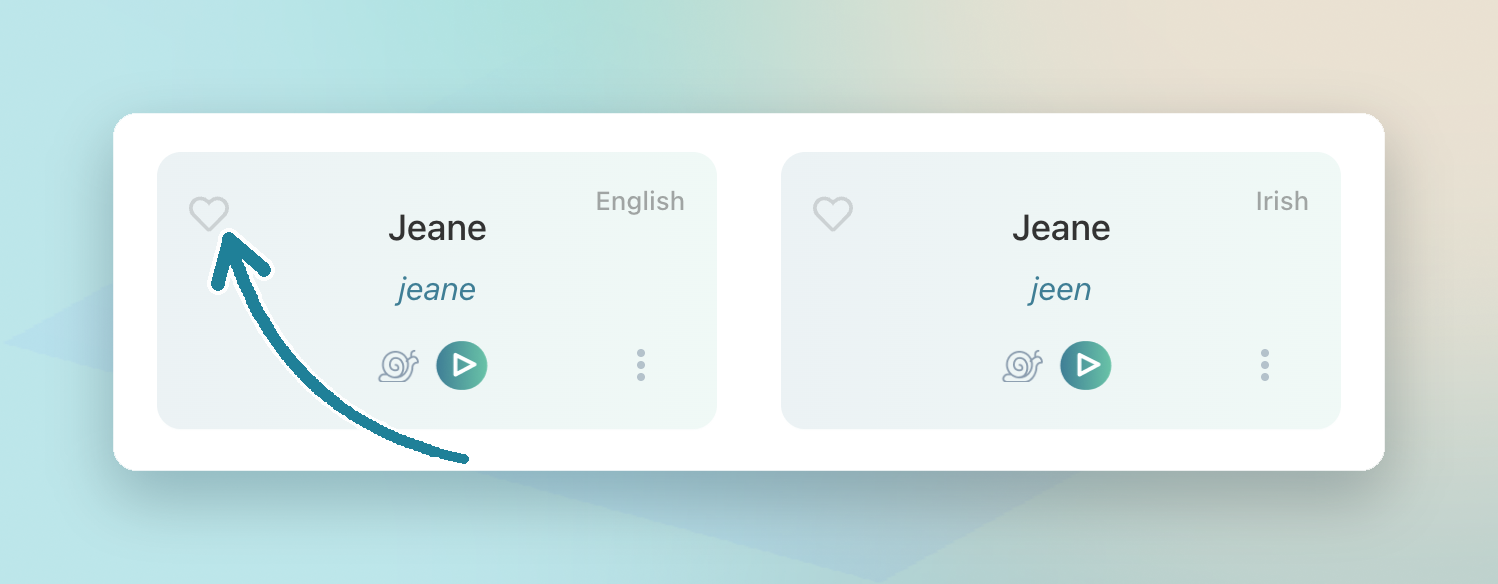
- Open a pronunciation card, or switch to list view
- Click the heart, or open the three-dot menu and add the name to Favorites
- Head to the Lists tab anytime to play those names again
How to Create a Custom List
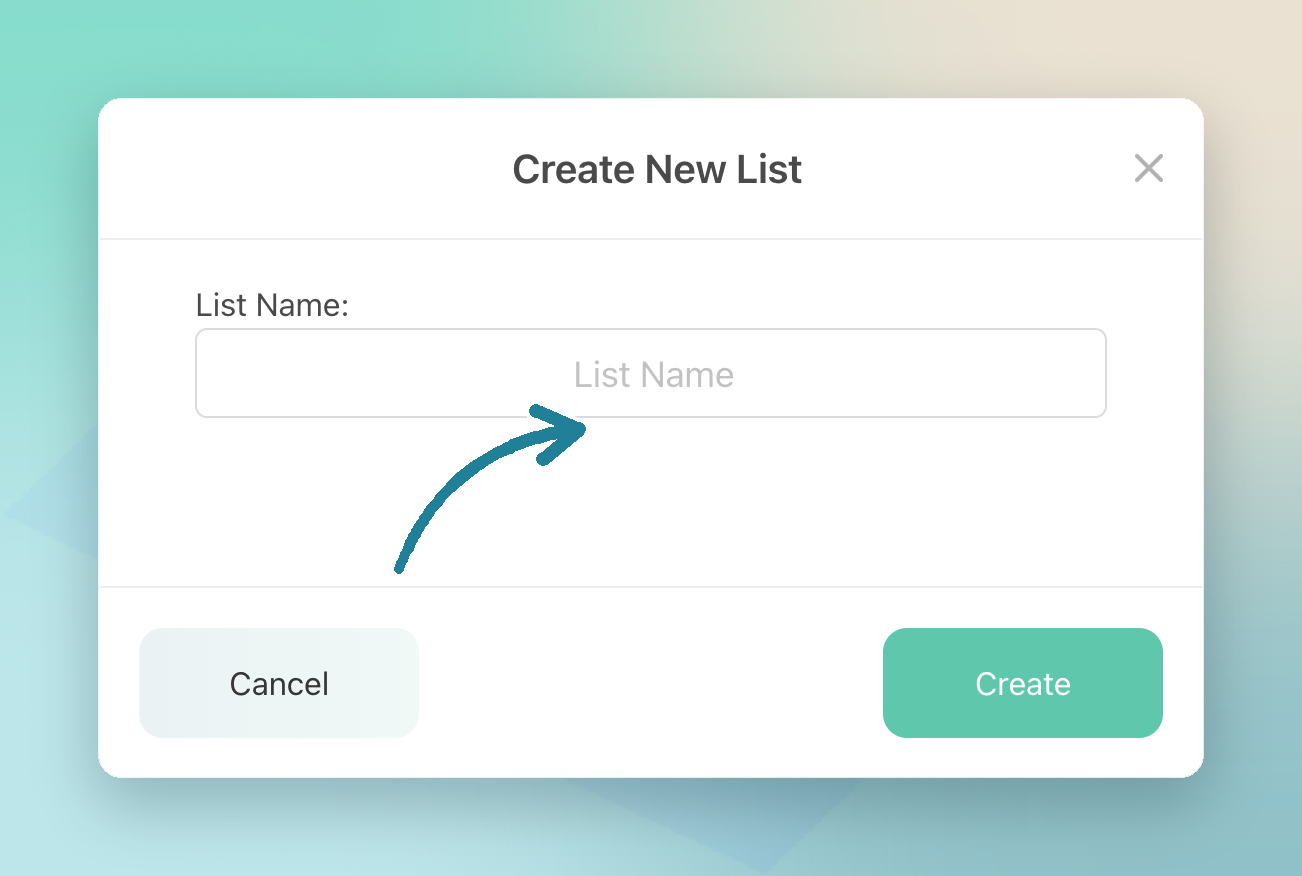
- Go to Lists and click Create a new list
- Give your list a name
- Upload a CSV, or add names one at a time from search
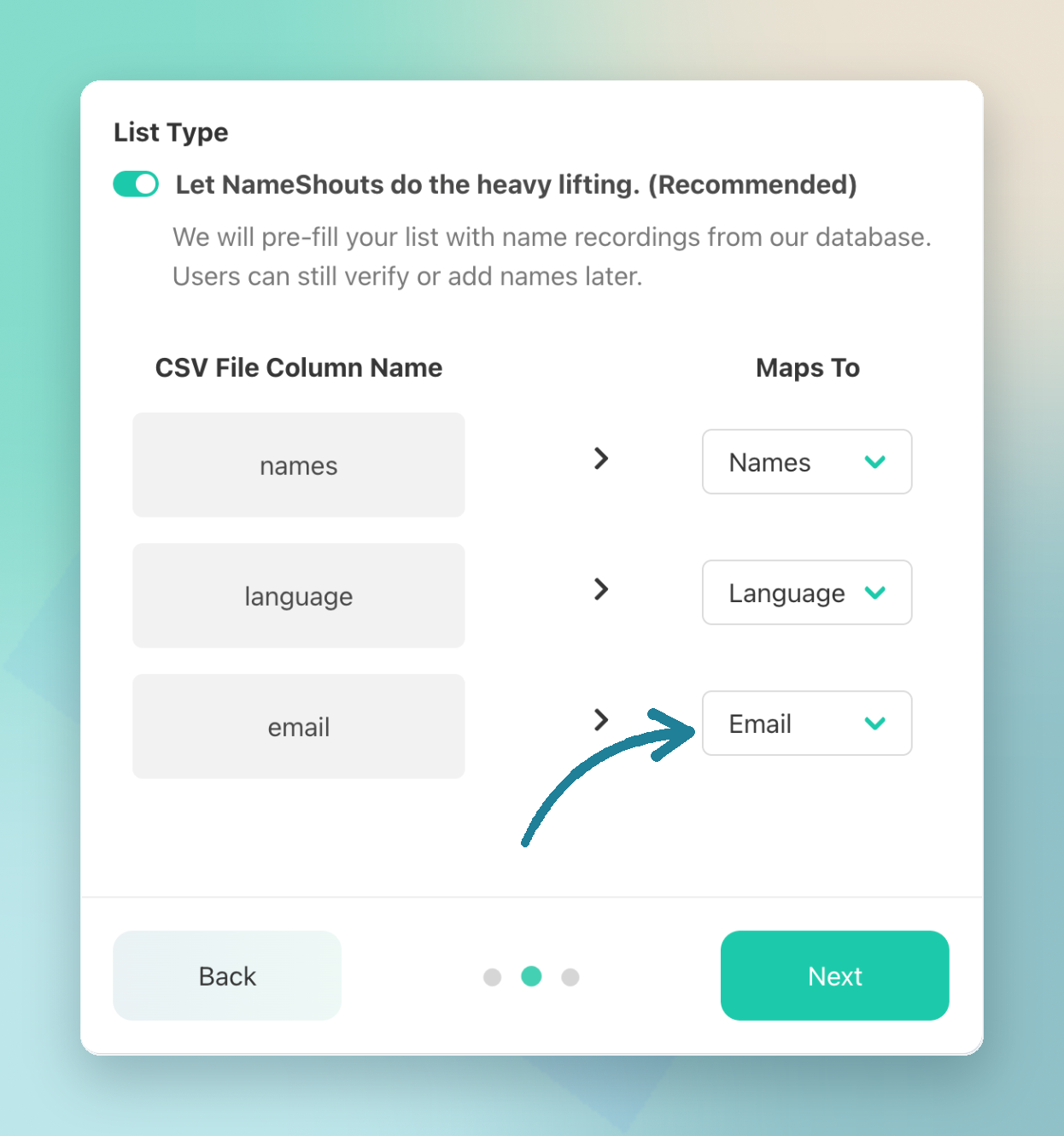
Uploading a CSV? Use the Names, Language, and Email columns. Add a Language if you know where the name comes from (or enter Not known).
Tip: Language and Email are optional — but add the Email column now, even if you don’t think you’ll need it. Without an email, we can’t verify a name for you, and its pronunciation will only come from our default database.
NameShouts gives you a CSV template right on the upload screen. After you upload, check that your columns map to Names, Language, and Email, then continue.
We recommend leaving Let NameShouts do the heavy lifting switched on. NameShouts fills in your list with recordings from its database, and you can still verify or add names later.
Important: If you switch it off, no default recordings will show up — everyone on your list will have to record their own name.
What You Can Do Once Your List Is Ready
- Play the whole list in one go
- Pin the names you want at the top
- Remove names you no longer need
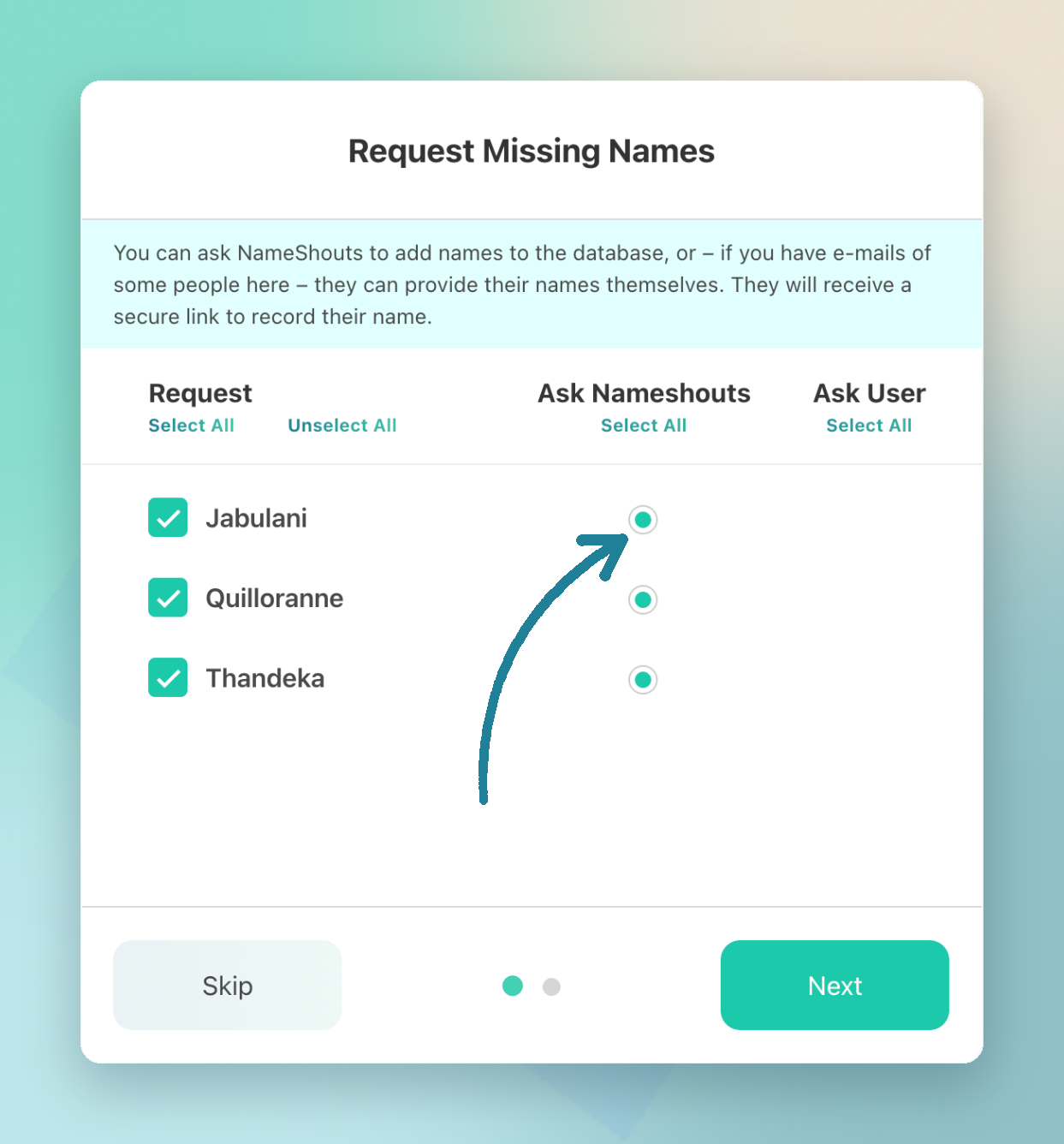
- Request any names that weren’t found
Adding a Full Name in More Than One Language
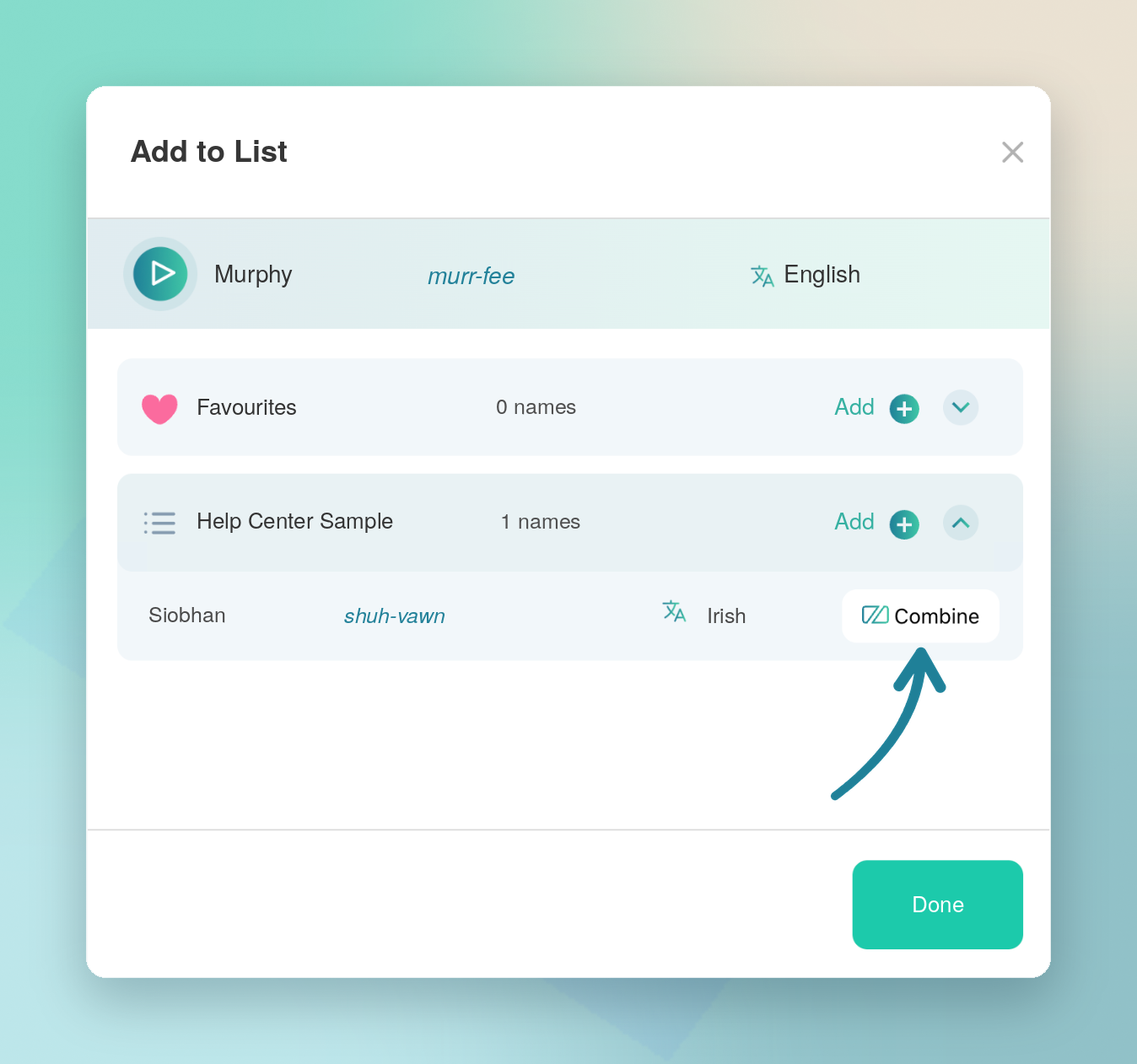
Some full names mix languages — for example, Mary Trần. Search and add the first name in its language, then search the next one. When you add it to the same list, open the dropdown next to the existing name and select Combine. Your list will play the full name together.
Good to know: Each name you add to a list counts as a search. If you’re out of shouts, the name will show as missing until you have more.
TL;DR
- Every account starts with a Favorites list
- Build custom lists from search or a CSV
- Play, pin, remove, and request names in any list
- Use Combine for full names in more than one language